Completing the Form
This guide walks you through all the fields and options when completing a formal complaint form.
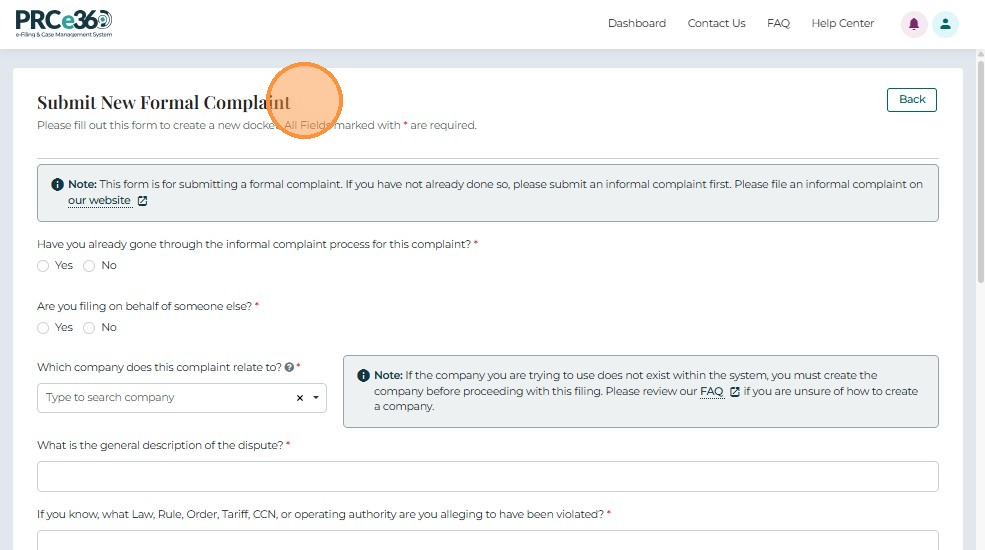
Provide Complaint Information
Follow the on-screen prompts to complete the required information.
1. Informal Complaint Check
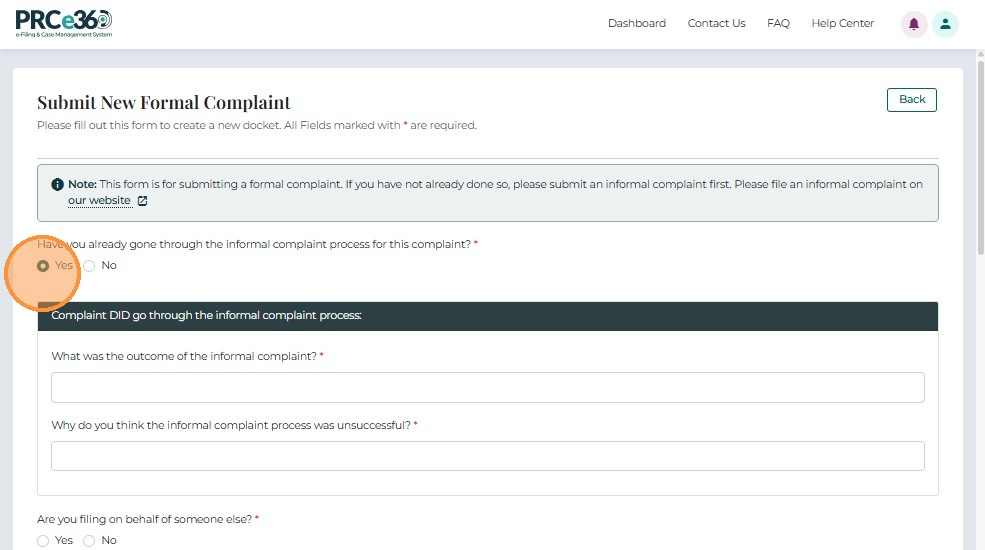
- Indicate whether the complaint has previously gone through the Informal Complaint process by selecting Yes or No.
If Yes
Provide:
- Details on the outcome of the informal complaint, and
- Reasons why the informal process did not resolve the issue.
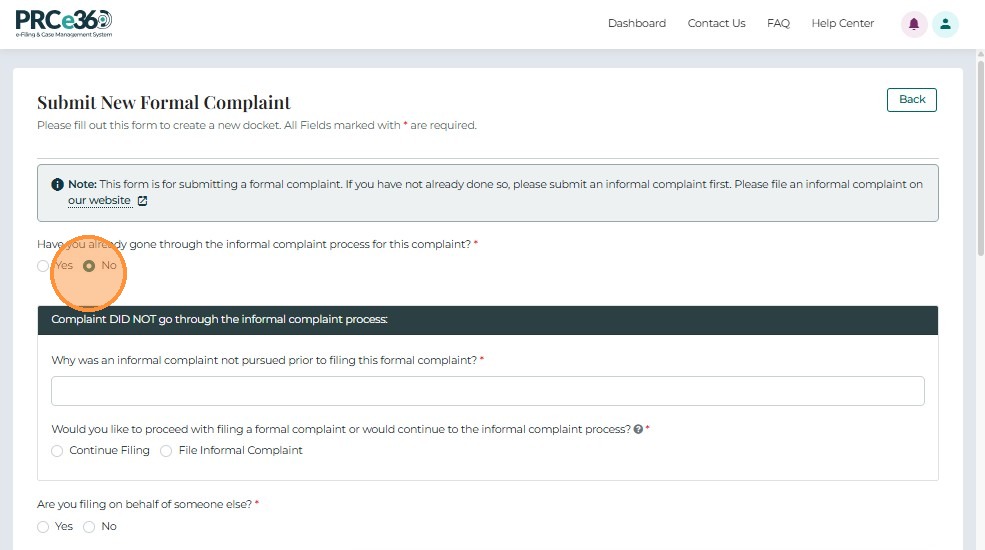
If No
Provide:
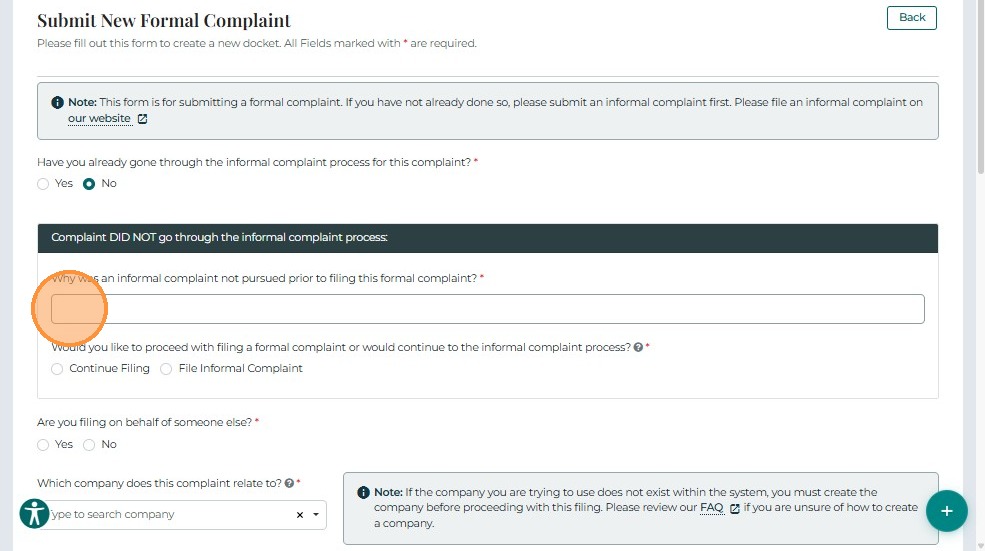
- An explanation of why the informal complaint process was not pursued.
Note: Users who wish to start with an informal complaint can select File Informal Complaint.
The system will guide them back to this form if the informal process remains unresolved.
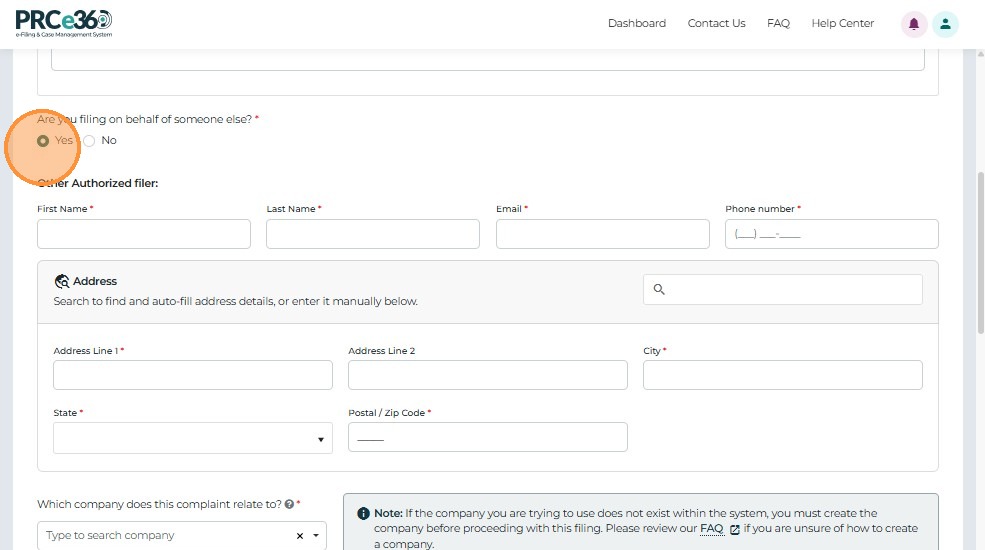
2. Filing on Behalf of Another Individual or Entity
If filing on behalf of someone else, select Yes and enter the filer's details.
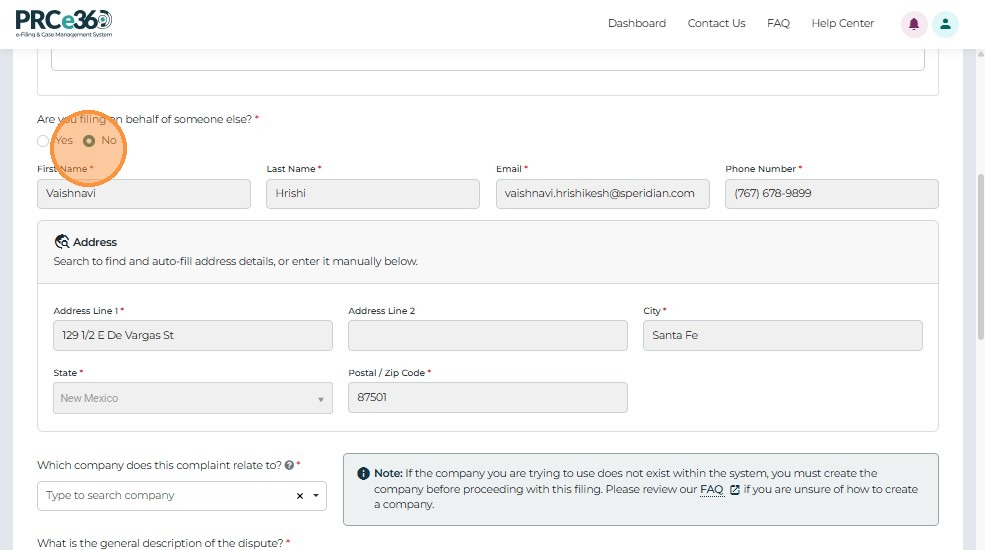
If filing on your own behalf, select No.
The system automatically populates your registered user information.
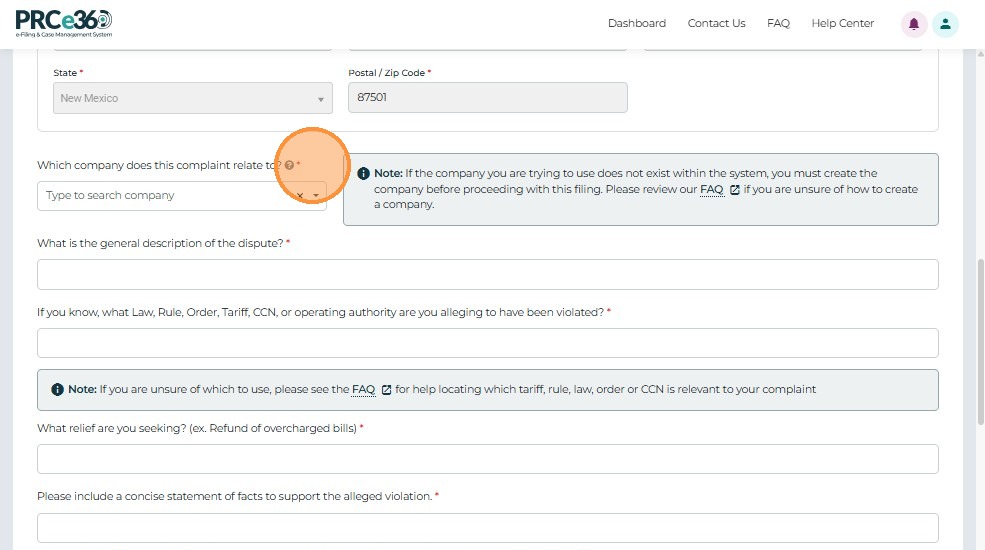
Note: You must also specify the company or utility related to the complaint.
If the company does not appear in the dropdown, it must first be registered in the system (see Register New Company section for details).
3. Enter Complaint Details
Provide the following information:
- General description of the dispute
- Applicable law, rule, tariff, CCN, or operating authority (if known)
- Relief being sought
- Statement of facts supporting the complaint
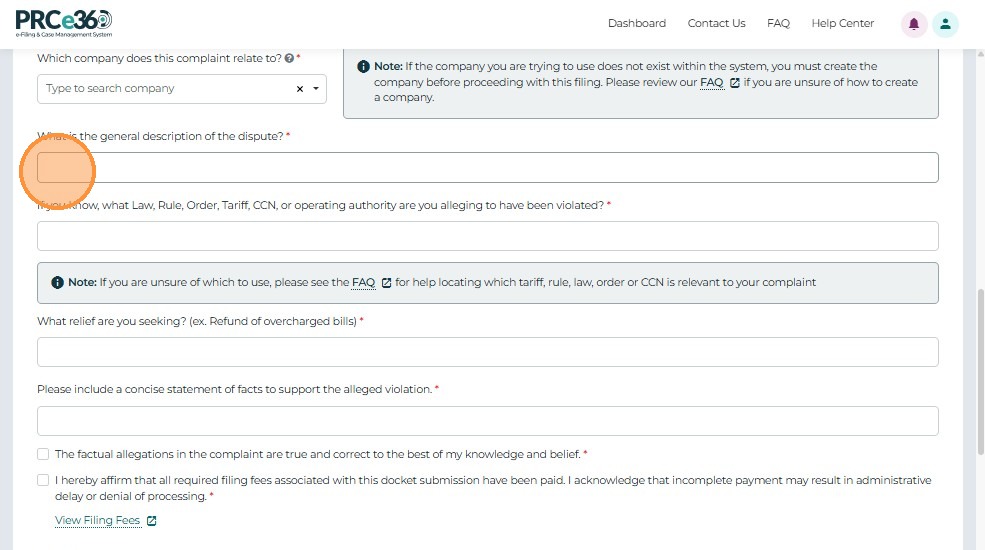
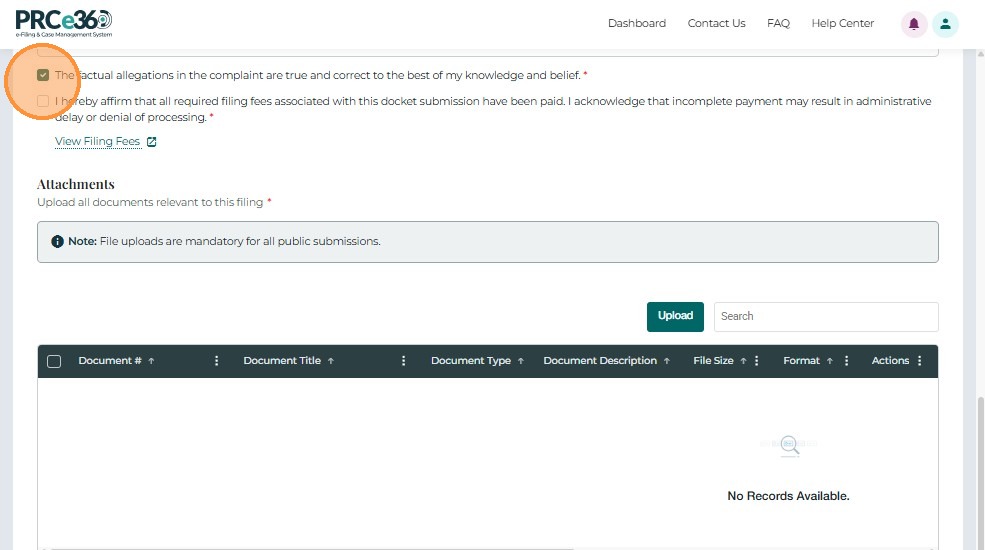
Once all details are entered, check the certification box:
"The factual allegations in the complaint are true and correct to the best of my knowledge and belief."
Form Validation Requirements
Before submitting, ensure all fields meet these requirements:
Required Fields (marked with *)
- All personal information fields (Name, Email, Phone, Address)
- Company/Utility selection - Must select from dropdown or enter if not listed
- Complaint description - Must provide detailed description
- Relief sought - Must specify what you're asking for
- Statement of facts - Must provide supporting facts
- Certification checkbox - Must be checked
Field Format Requirements
| Field | Requirements |
|---|---|
| Valid email format (name@example.com) | |
| Phone | Standard format (XXX-XXX-XXXX or (XXX) XXX-XXXX) |
| Address | Complete address including city, state, ZIP code |
| Dates | Valid date format (MM/DD/YYYY) |
Document Upload Requirements
- File formats: PDF, DOCX, XLSX, JPG, PNG
- File size: Maximum 10-50 MB per file (check form for exact limit)
- File names: Avoid special characters (use letters, numbers, hyphens, underscores)
- Required documents: Varies by complaint type - check form for specific requirements
- Review all entered information for accuracy
- Ensure all required fields are completed
- Verify file uploads are successful
- Check that certification box is selected
- Save your confirmation number when received
Common Mistakes to Avoid
Incomplete Information
- Don't leave required fields blank
- Don't skip sections thinking they're optional
- Don't submit without uploading required documents
Incorrect Company Selection
- Don't select the wrong utility/company
- Don't enter company name if it exists in the dropdown - search first
- Don't proceed if company isn't found - register it first if you're Tier 2
Vague Complaint Description
- Don't write "I have a problem" - be specific
- Don't omit dates, locations, or details
- Don't forget to explain how the issue affects you
Missing Supporting Documents
- Don't forget to upload bills, correspondence, or evidence
- Don't upload corrupted or unreadable files
- Don't exceed file size limits
Incorrect Contact Information
- Don't use an email you don't check regularly
- Don't provide incorrect phone numbers
- Don't forget to update if your contact info changes
Not Checking Certification
- Don't forget to check the certification checkbox
- Don't submit without reading what you're certifying
- Don't certify information you know is incorrect
Next Steps
After completing the form:
- Uploading Documents - Attach supporting files (optional but recommended)
- Submitting Your Complaint - Submit your complaint
Related Guides
- Submit a Formal Complaint - Overview - Introduction to formal complaints
- Getting Started - How to access the complaint form